Using bwSync and Share with your smartphone
What you need to know
Once you have registered with the bwSync&Share service provided by the Karlsruhe Institute of Technology (KIT), you can also use the service on your smartphone.
This example explains how to install the client/app on your iPhone and link it to your account.
You can find the terms of use and further information here:
External link opens in a new window:bwSync&Share Terms of Use
External link opens in a new window:bwSync&Share Help Pages
What you have to do
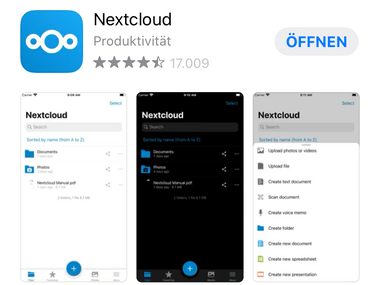
Search for "Nextcloud" in the App Store and install the app.
- 1.1
Open the app and enter the following link:
- 2.1
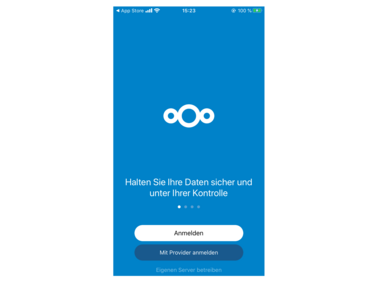
Select “Anmelden” (Log in).
- 3.1
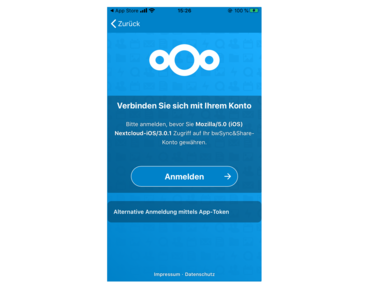
Click on the “Mitglied im bwSync&Share Verbund” (Member of the bwSync&Share network) button.
- 4.1
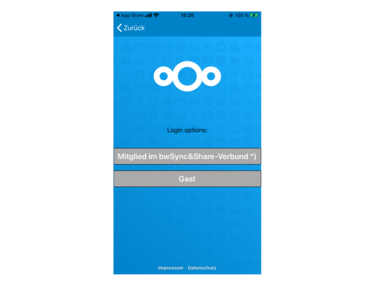
Select “Hochschule Furtwangen” (Furtwangen University) from the list and enter your HFU login details on the following Shibboleth login page.
Click on "Zugriff gewähren" (Grant access).
- 6.1
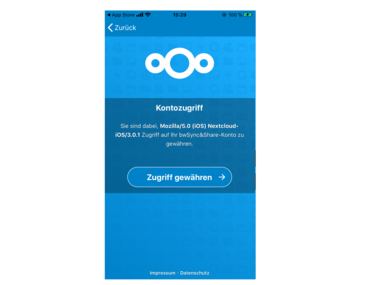
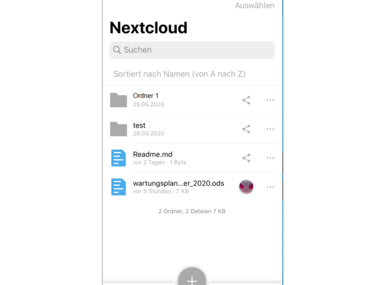
The bwSync and Share service is now ready. The relevant shared folders are displayed.
- 6.1