Importing the user certificate into Thunderbird

MYCERT 10-030

Important information

You need a user certificate in order to sign invoices correctly in the internal university portal (HIP). You do not need a certificate for any other applications in HIP.

What you need to know

The DFN user certificate (see helpcard Internal link opens in the same window:Applying for user certificate for email and HIP (MYCERT 10-010)) (only for HFU employees) can be imported and set up as a digital signature in Mozilla Thunderbird. The digital signature verifies your identity in email communication and ensures that your emails are delivered to the recipient unchanged.

What you have to do

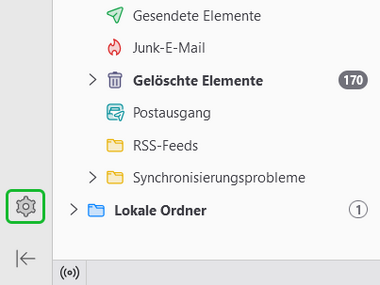
  1. Open the settings by clicking on the gear icon (see Fig. 1.1) in the lower left corner.

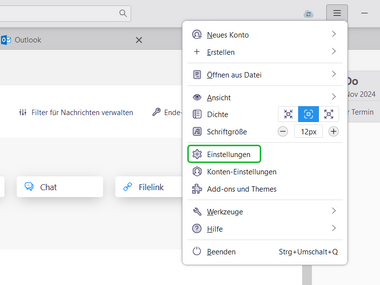
    • Alternatively, you can also use the application menu in the upper right corner by clicking on the “Settings” option there (see Fig. 1.2).

    • The Thunderbird settings will open.

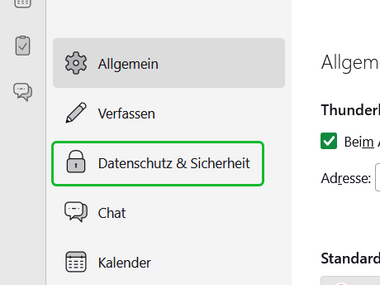
  2. Select the “Privacy & Security” option from the menu.

    • The menu item is opened.

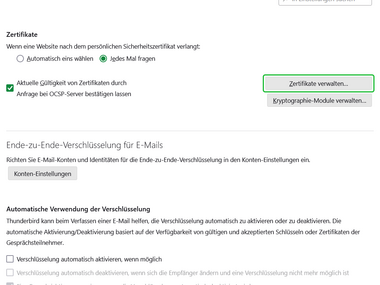
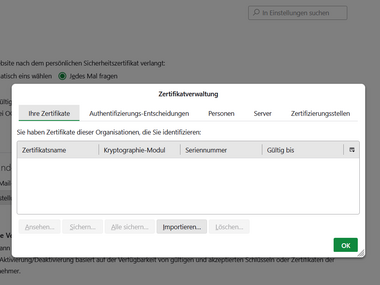
  3. Scroll down the page that appears and click the “Manage Certificates” button in the last section.

    • The “Certificate Management” overlay opens.

  4. Import the user certificate:

    • Click on "Import".

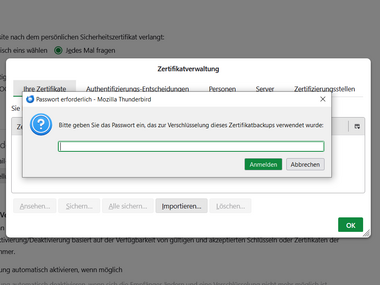
    • Select the desired user certificate.

    • Click "Open" to complete the selection.

    • When prompted, enter your self-defined password for the certificate to confirm the import.

    • The certificate is listed as a new entry in the certificate management.

  5. Check that the import has been completed successfully and then close the overlay by clicking “OK”.

    • After the successful import, the certificate is displayed as a new entry in the certificate management overview.

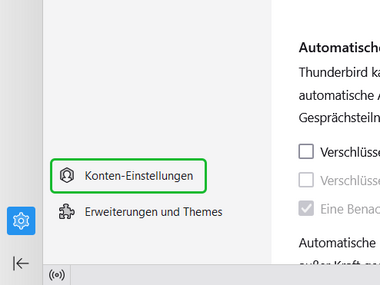
  6. Now switch to the account settings by clicking on the “Account settings” option in the menu.

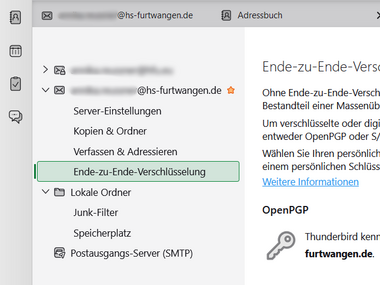
  7. Select the “End-to-end encryption” option below your hs-furtwangen.de account.

    • The advanced settings for end-to-end encryption are displayed.

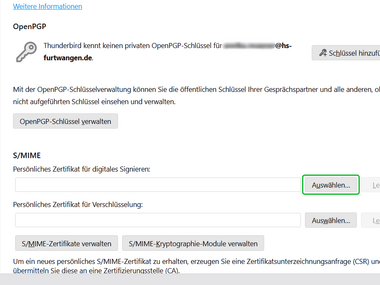
  8. To store the certificate, click the "Select" buttons in the "S/MIME" section.

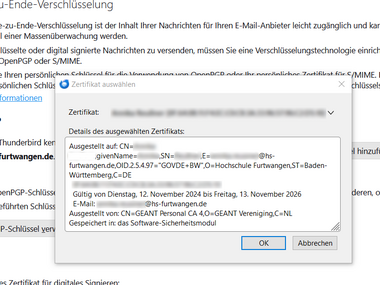
    • The "Select certificate" popup window opens.

    • Select your personal certificate here and confirm it by clicking "OK".

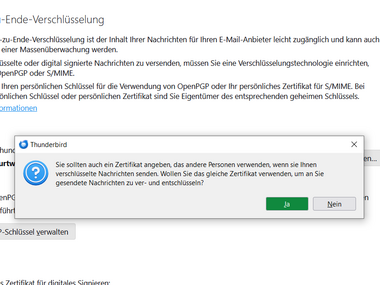
    • If you are asked if you want to use the digital signature certificate for encryption as well, confirm it by clicking "Yes".

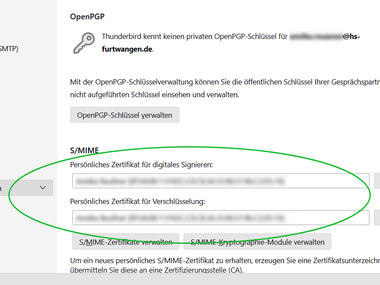
    • When both input fields under "S/MIME" are filled in, the certificate has been successfully deposited.

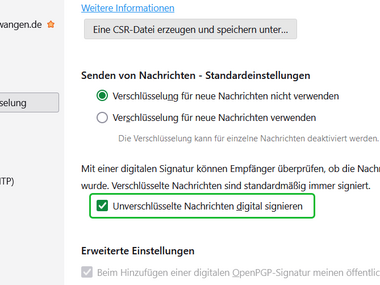
  9. Scroll down a little to the section “Sending messages” and activate the option “Digitally sign unencrypted messages

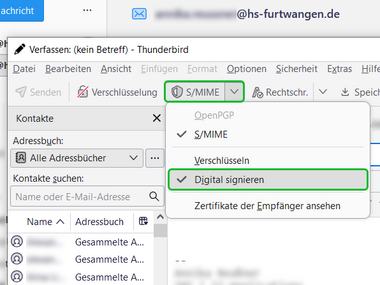
    • Alternatively, you can also activate this feature when composing a message: write a new email message, open the “S/MIME” dropdown menu, and then activate the “Digitally sign” option in the dropdown menu that appears.

    • By activating this feature, you ensure that all unencrypted messages are signed with your digital signature by default.

Problems or questions?