WLAN HFU
What you need to know
You can connect to the internet via the HFU Wi-Fi network using almost any Wi-Fi-enabled device without the need for additional software. Please note the recommended settings in these instructions and ensure that your devices always have the latest software updates.
What you have to do
Requirements
Settings for “HFU” Wi-Fi
Most current operating systems find the correct settings automatically and only require authentication and, if necessary, certificate verification (required to establish a secure, encrypted connection).
For verification purposes, you can find the settings in detail here:
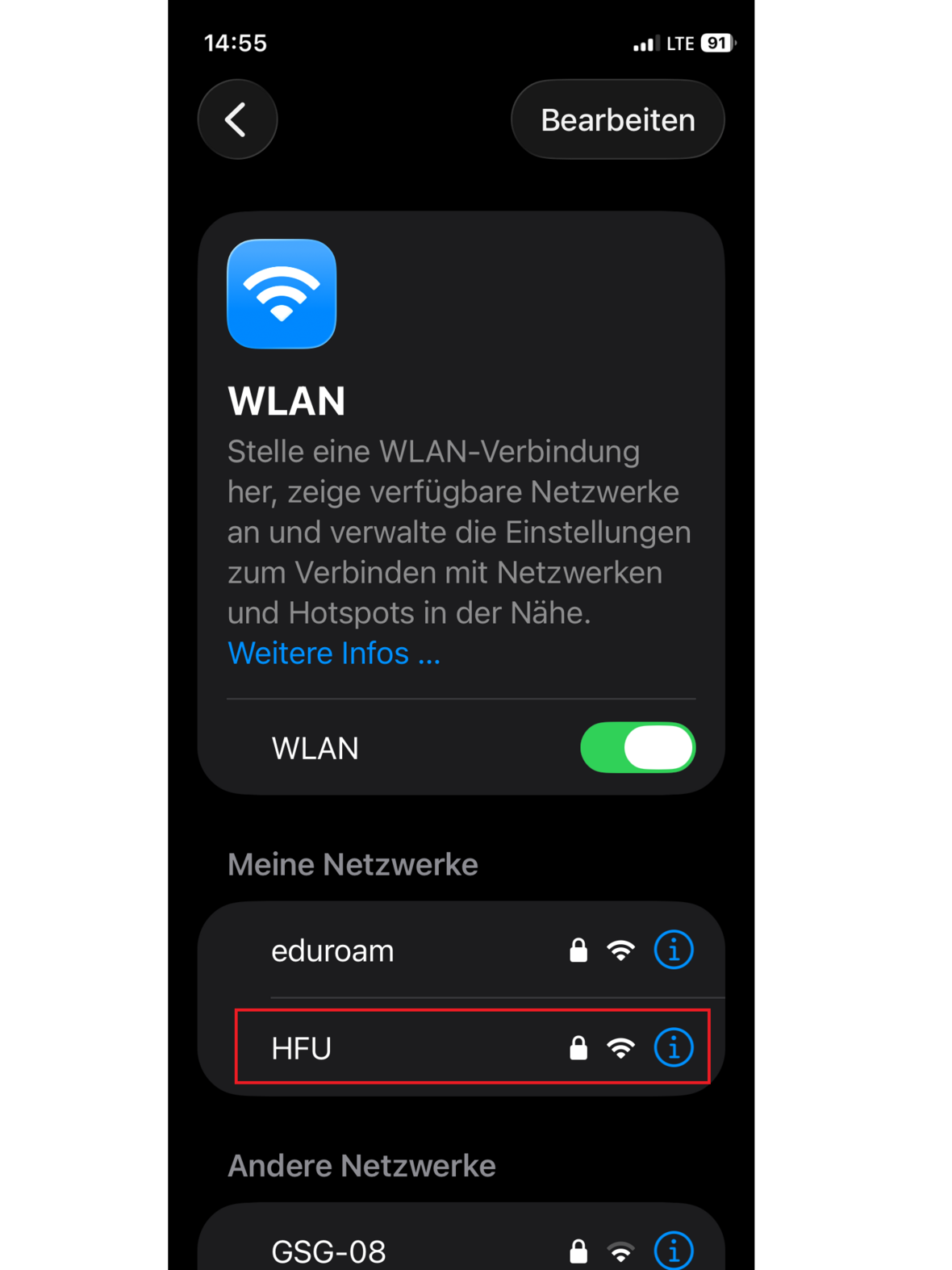
Instructions for Apple iOS devices (iPhone, iPad, etc.)Instructions for Android devicesOpen the Wi-Fi settings (under Settings) on your device (iPhone, iPad).
Select the SSID “HFU” from the displayed Wi-Fi networks and connect (see Figure 2.1, red border).
- 2.1
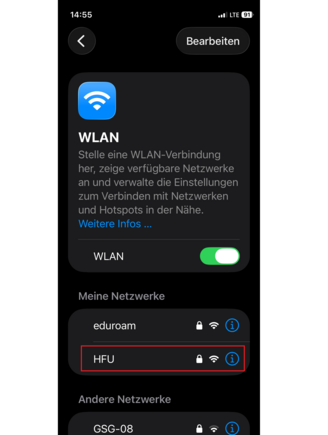 HFU WLAN
Select “HFU.”
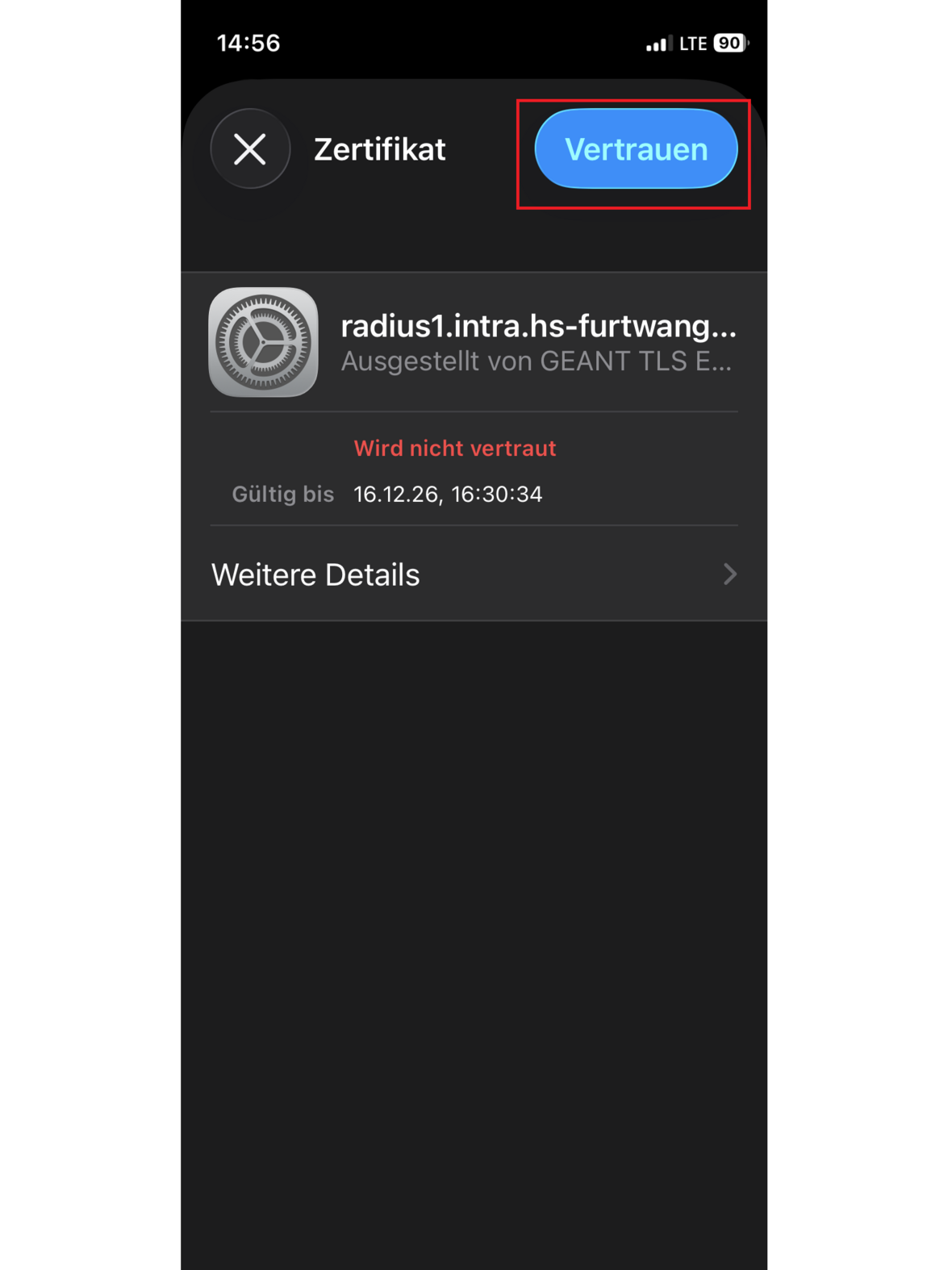
Now click on the blue “Trust” button.
- 3.1
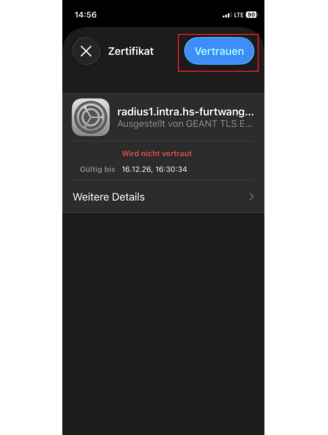 certificate check
Confirm the certificate check with “Trust”.
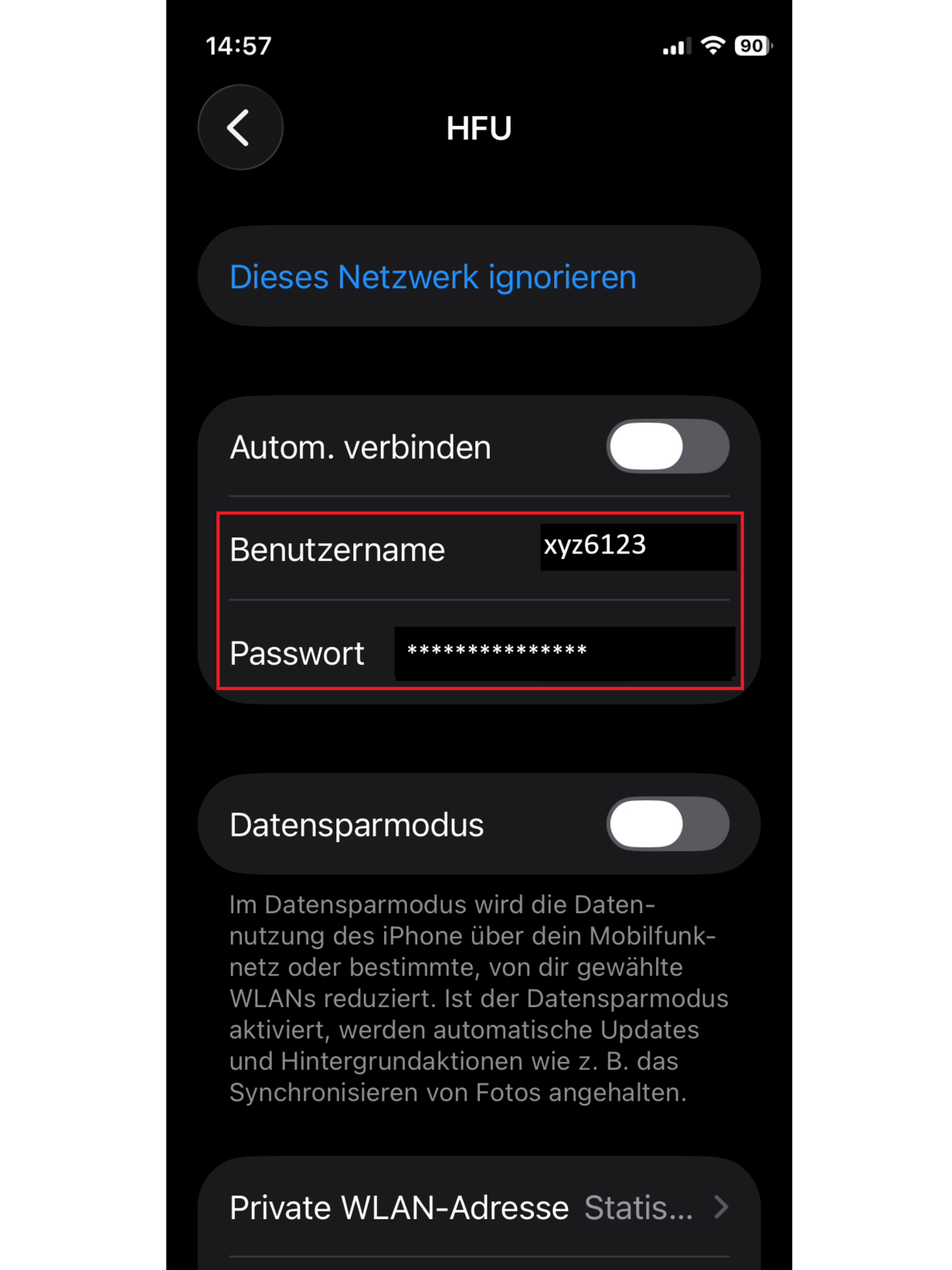
Now enter your username from your HFU account and your password (see Figure 4.1, red border):
Example username for students:
xyz61234
or xyz61234@stud.hs-furtwangen.de
Example username for employees/lecturers:
xyz5123
or xyz5123@hs-furtwangen.de
- 4.1
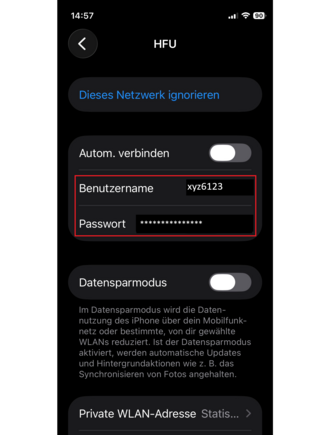 HFU account and password
Enter your username and password
- 4.2
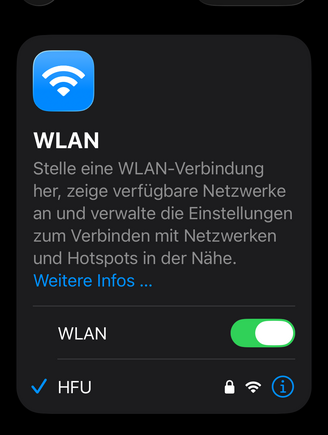
Instructions for Windows devicesOpen the Wi-Fi network connections on your mobile phone.
Select the “HFU” network from the list of available networks.
- 2.1
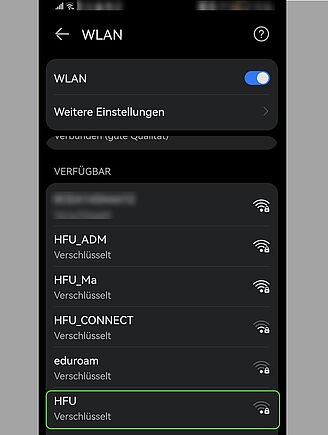
Enter your HFU account details in the “Identity” and “Password” fields.
- 3.1
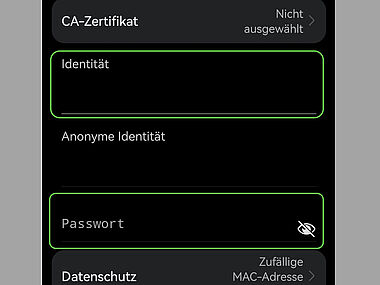
Scroll down a little. Under “CA Certificate,” tap on the text “Select Certificate.” Then select the option “Trust on first use” (see Figure 4.1).
- 4.1
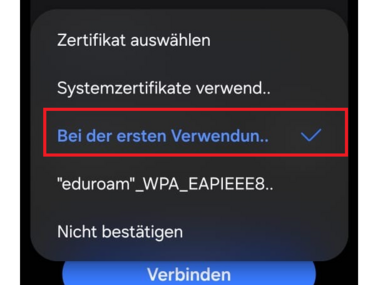
Tap the “Connect” button.
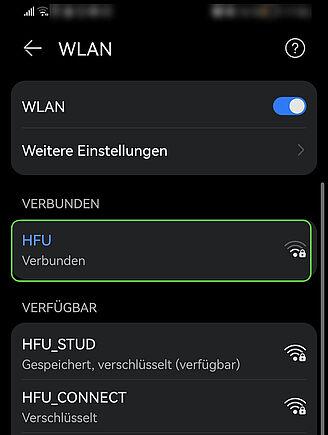
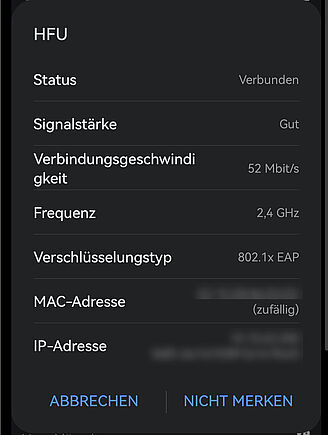
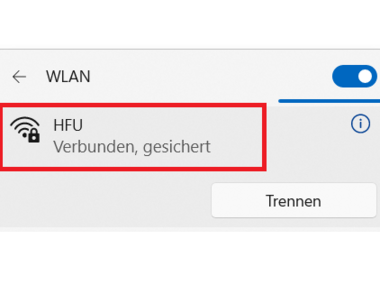
Finally, ensure that the network connection has been successfully established and that you can use it by checking the status and signal strength (see example in Figure 5.2).
- 6.1
- 6.2
Instructions for Mac devices (z. B. Macbook, etc.)Go to the Wi-Fi settings (Wi-Fi icon at the bottom right of the taskbar).
Select “HFU”.
- 2.1
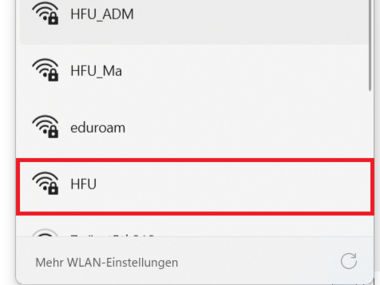
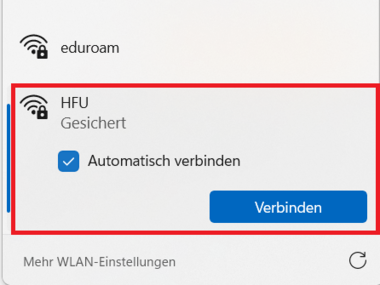
Check the “Connect automatically” option (if desired) and click the “Connect” button.
- 3.1
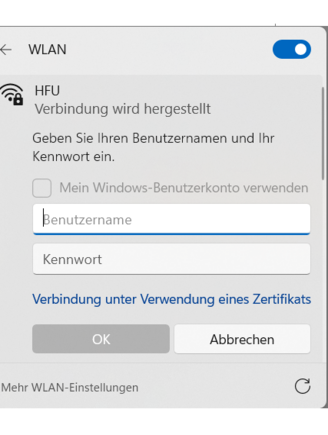
Enter your HFU username and password and confirm with OK (see Figure 4.1).
Example username for students:
xyz61234
or xyz61234@stud.hs-furtwangen.de
Example username for employees/lecturers:
xyz5123
or xyz5123@hs-furtwangen.de
- 4.1
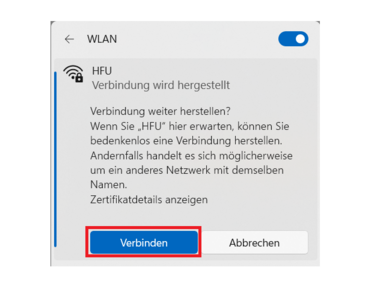
Confirm the prompt by clicking “Connect” (see Figure 5.1).
- 5.1
- 5.2
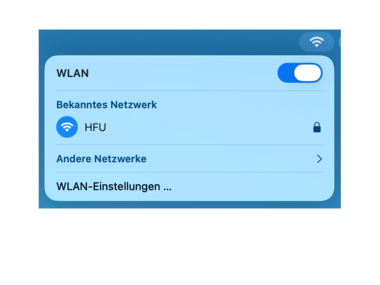
Go to the Wi-Fi settings (Wi-Fi icon in the top right corner of the menu bar).
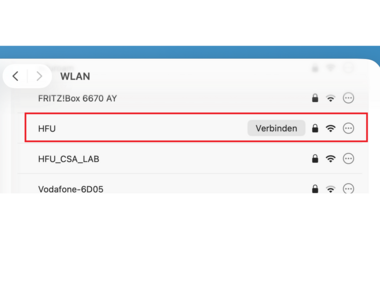
Select “HFU” and “Connect.”
- 2.1
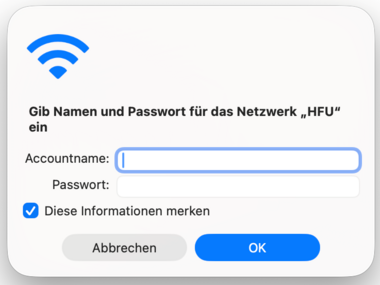
Enter your HFU username and password and confirm with OK (see Figure 3.1). Check the “Remember this information” option (if desired).
Example username for students:
xyz61234
or xyz61234@stud.hs-furtwangen.de
Example username for employees/lecturers:
xyz5123
or xyz5123@hs-furtwangen.de
- 3.1
- 3.2
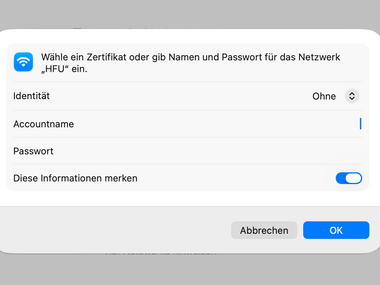
You are connected to the “HFU” Wi-Fi network (see Figure 4.1).
- 4.1
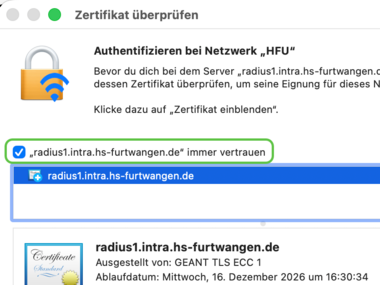
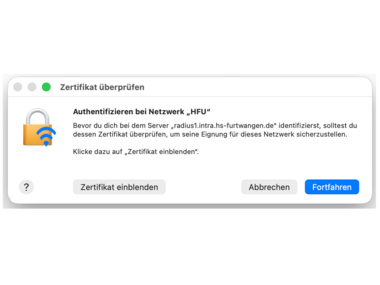
Confirm the certificate verification prompt by clicking “Continue” (see Figure 5.1) and entering your device password.
- 5.1
- 5.2