Using bwSync and Share with a client
What you need to know
It is possible to install a desktop client for bwSync & Share. Here are the links to the various clients:
External link opens in a new window:bwSyncShare Client download page
If you have already installed a Nextcloud client, we’ll also explain here how to establish access to bwSync & Share within your existing app installation.
What you have to do
Please choose from the following options, depending on your current setup.
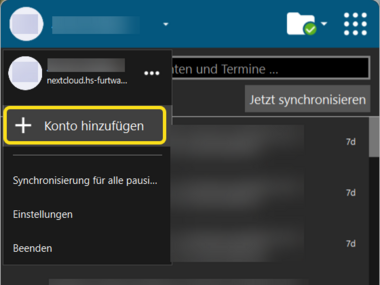
Reinstall the clientUse an existing Nextcloud installationOpen the Nextcloud app you have already installed and click on the “Add account” option in the profile menu.
- 1.1
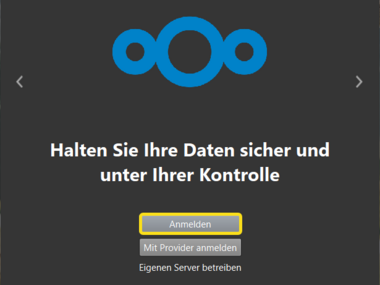
Then click on the “Log in” button in the new window.
- 2.1
Enter the server address “https://bwsyncandshare.kit.edu/” in the input field and click the “Next” button.
- 3.1
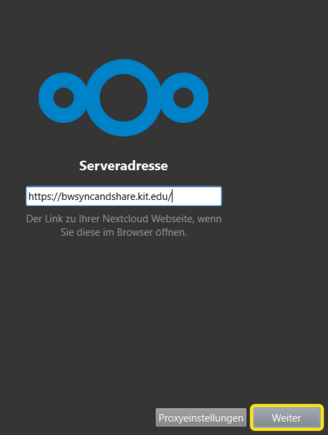
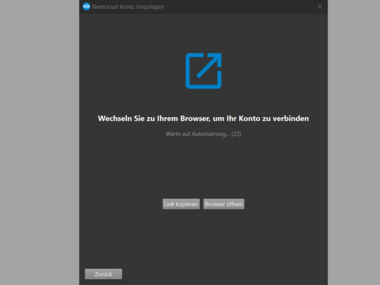
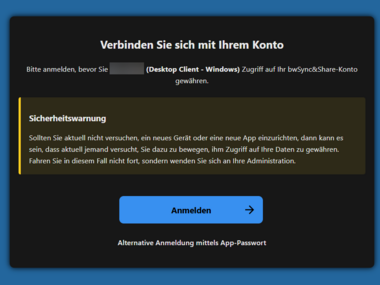
Log in using your HFU account and grant access to your account.
- 4.1
- 4.2
- 4.3
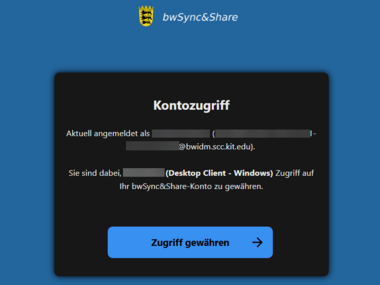
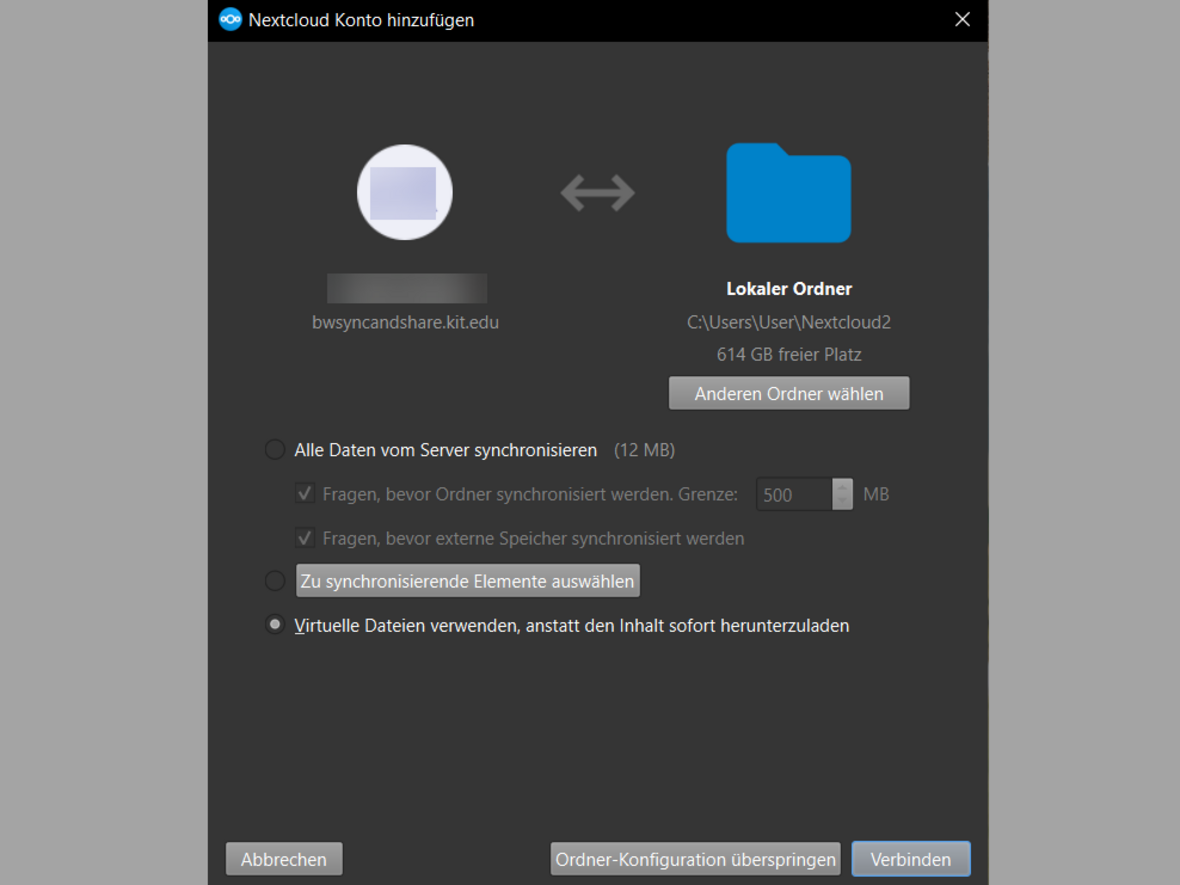
Finally, please confirm the settings by clicking on “Connect”.
- 5.1
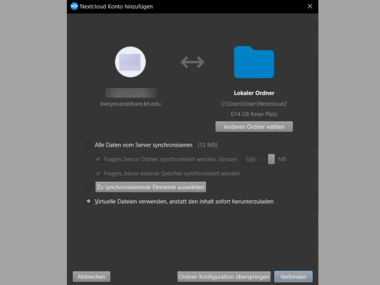 Folder configuration
Here you can customise the default directory and the detailed synchronisation settings.
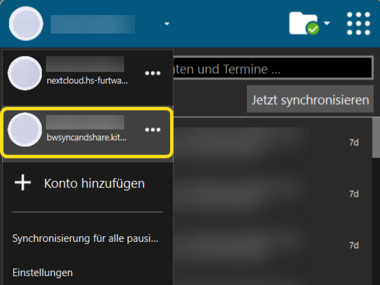
The bwSync & Share account is established once it is also accessible via the drop-down menu.
- 5.1