Connect bwSync and Share to your account via the Windows client
What you need to know
Once you have registered with the bwSync&Share service provided by the Karlsruhe Institute of Technology (KIT), you can start using the service.
The following explains how to install a Windows client and connect it to your account.
The terms of use and further information can be found here:
External link opens in a new window:Terms of Use
External link opens in a new window:bwSync&Share help pages
What you have to do
To install the client, download it from the bwSync&Share website at: bwSyncShare Client Updates
- 1.1

Connect your client to your account now. To do this, double-click to launch the client.
- 2.1
 The Connection Wizard
The connection wizard establishes a connection to your account
Please click on the ‘Reopen browser’ link now.
- 3.1
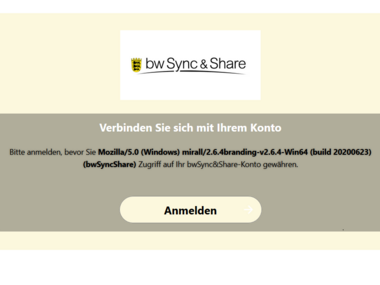
In the browser window, click the ‘Log in’ button.
- 4.1
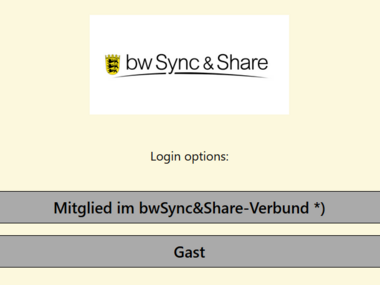
Click on the ‘Member of the bwSync&Share network*’ button.
- 5.1

- 5.2

Select “Furtwangen University” from the list and log in using your HFU credentials in the login window that appears.
- 6.1

Click on "Grant access".
- 7.1

You are now logged in to your account and can close the window.
The client is now correctly connected to the account. Clicking the three-dot icon
 opens all folders.
- 7.1
 The client
The three-dot icon is used to display the shared folders.

