Chat Client Login

CHAT 10-011

What you need to know

Please note that you must have the Element Chat client installed on your system before you can proceed with logging in. If this is not yet the case, please follow the instructions in Internal link opens in the same window:‘Installing the chat Client’ (CHAT 10-010).

What you have to do

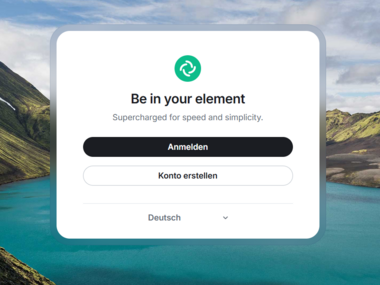
  1. Launch the “Element” app on your computer or mobile phone.

  2. On the welcome page, within the login form, click the "Log in" button.

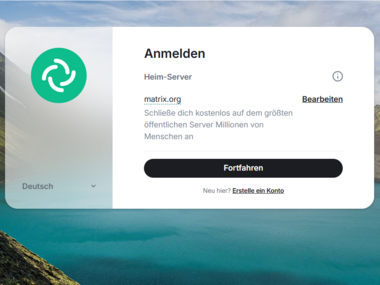
    • A login screen will appear.

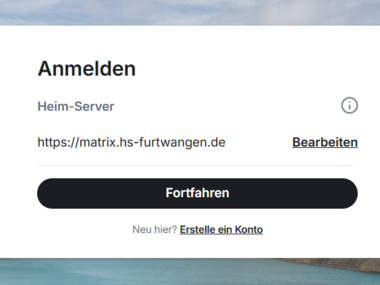
  3. Click on the ‘Edit’ link next to the home server address ‘matrix.org’ to enter the address ‘matrix.hs-furtwangen.de’ under ‘Other home server’.
    Then click on ‘Continue’.

    • The address is stored as the home server.

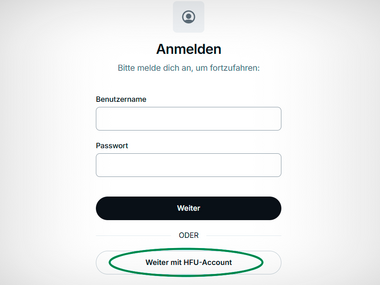
    • The HFU account enquiry page opens in your browser.

  4. Please ignore all the input fields displayed and click directly on the ‘Weiter mit HFU account’ (Continue with HFU account) button.

    • You will be redirected to the HFU account login page.

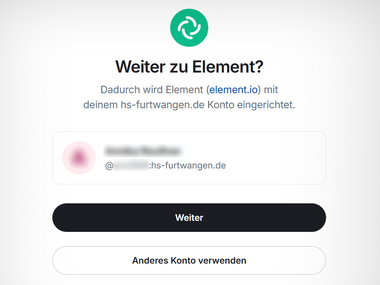
  5. Log in using your HFU account and then click the “Weiter” (Continue) button under the selected HFU account.

    • By doing so, you are confirming that Matrix has access to the account at HFU.

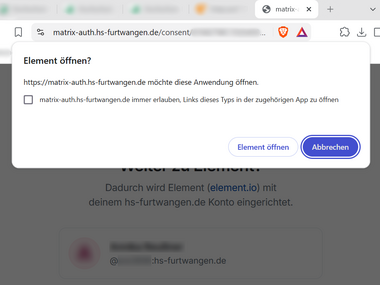
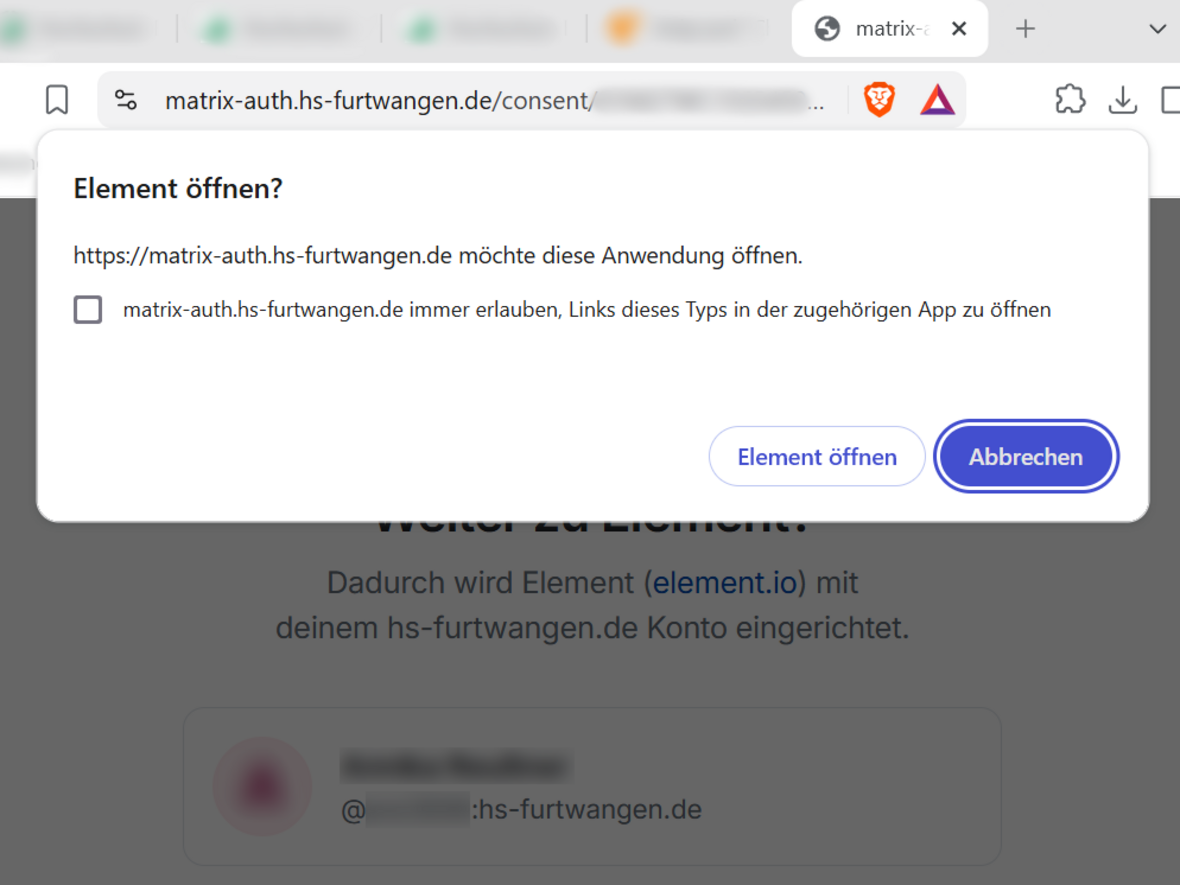
    • A confirmation prompt will appear in the browser.

  6. Confirm the one-off request via the browser by clicking on the “Open element” button.

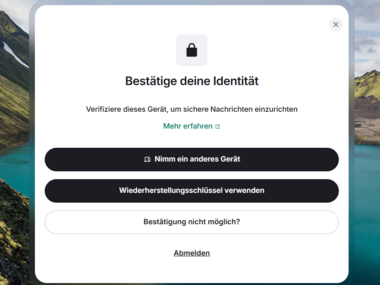
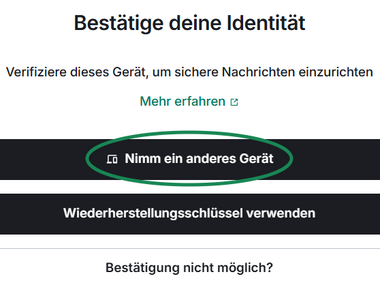
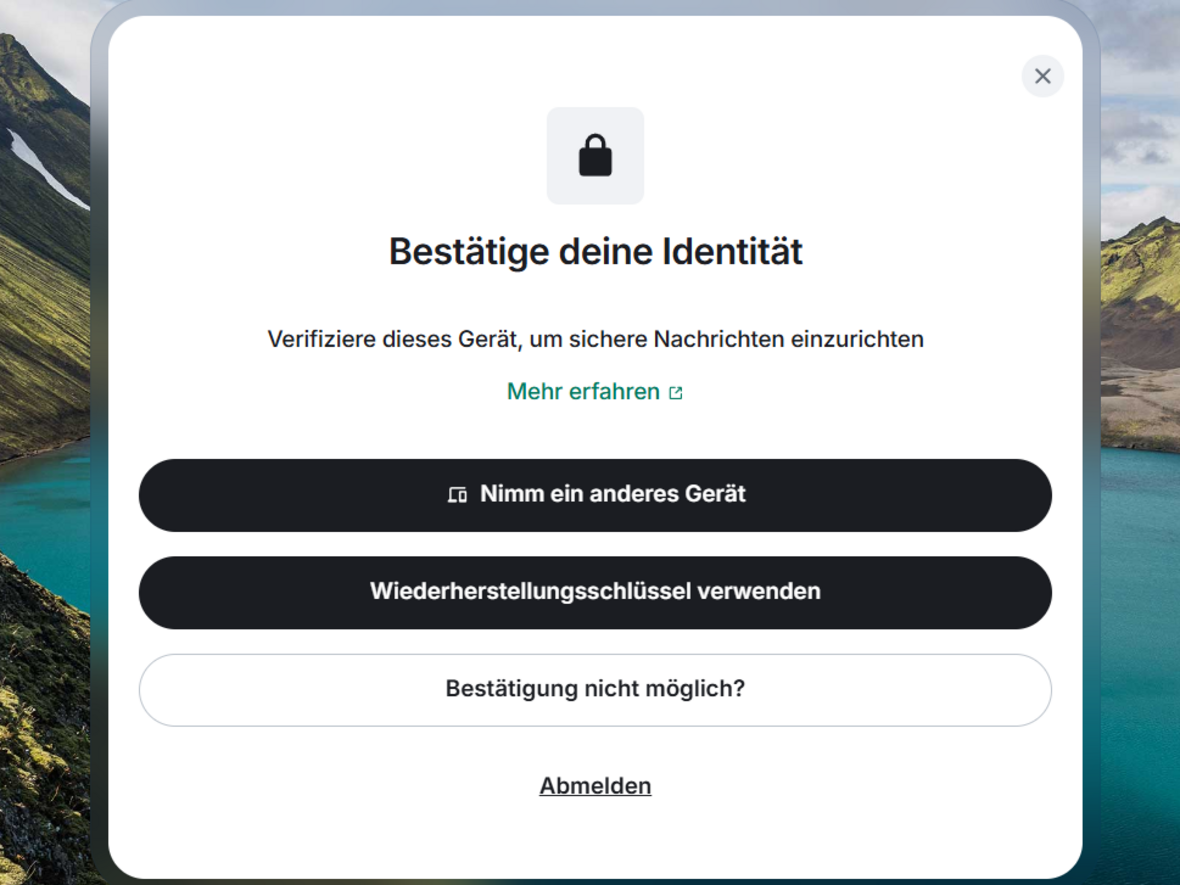
    • The view in the Client element is updated and a dialogue box appears to confirm the identity.

  7. Please verify your identity using the recovery key to protect your message history:

    I haven't established recovery key yet
    1. Click the 'Establishment' button.

      • A cryptic key is generated and displayed.

    2. Click on the “Download” button and save the text file containing the recovery key to your computer. 
      Once you have saved it, complete the process by clicking “Continue”.

      • It is advisable to use a protected area within your file system for storage.

      • Save the key using a descriptive name (e.g. "matrix-key-backup-01-01-2026").

      • The key is safe.

    I already have a recovery key
    1. Click the “Use recovery key” button.

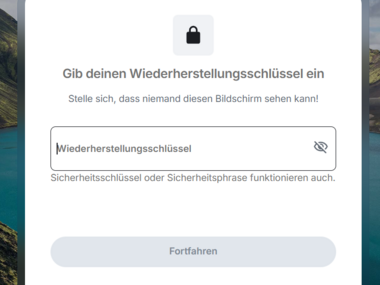
      • The input form for the key is displayed.

      • If you have already established a recovery key, you can use it at this stage to verify your identity and gain access to your previous message history.

    2. Use File Explorer to locate the folder containing your recovery key. Open the text document in that folder and copy the key to the clipboard.

    3. Copy the key into the ‘Recovery Key’ input field and then click the ‘Continue’ button when it is active. 

      • The identity has been confirmed.

    I have a recovery key, but unfortunately it doesn't work
    1. Before you generate a new key, please check the following points first:

      • Check the code in the clipboard – have you perhaps copied unwanted characters or not enough characters?

      • Check whether you have accidentally used an old password.

      • Do you have an active connection with another device? 
        If so, click on the ‘Use another device’ button or, alternatively, use the emoji verification method.

    2. If the steps outlined above do not resolve the issue, please click on the ‘Confirmation not possible?’ button.

      • The identity reset dialogue box appears.

    3. Read the information on resetting your identity and then click “Continue”.

    4. Establish a new key security measure.

      • The key can be used again without any problems for a new session.

    5. Finally, check the number of your logins and make absolutely sure that you also verify or close any other active sessions. Unverified sessions could indicate unauthorised use of your account by third parties and should therefore be terminated. To do this, follow the Helpcard guide Internal link opens in the same window:on managing sessions (CHAT 10-015).

    I would like to use the chat without the recovery key
    1. You can also use the chat without recovery key if you do not have the key to hand, if verification fails, or if you wish to establish a new recovery key from scratch first. You simply need to be aware that none of the messages sent during the active session can be linked to any specific identity, and that you will no longer be able to access them after logging in again later. 
      (You can find detailed information below under the heading “Why is key protection important?”)

    2. In the dialogue box, click the Close button (cross) in the top right-hand corner.

    3. Confirm the following dialogue box by clicking on “Establishment later”.

      • The standard view showing the chats is displayed, and you can send and receive messages.

      • It is possible to establish key protection at a later stage – it just needs to be done before the end of the session (logout).

  8. Why is the recovery key important?

    • A recovery key is used to secure all messages received or sent during your session in the chat client. This means that by entering this key, you can also access your previous chat history from a different session (i.e. after logging in again). This access to the chat is therefore regardless of your login details and can be accessed from various devices by entering the recovery key or completing a session verification.

      If a recovery key is never set, all messages received and sent cannot be linked back to the original identity (your login) and will be lost to you once the session ends. This means that after logging out and logging in again, you will no longer have any access to the messages. Any messages composed during a session will be irretrievably lost without a matching recovery key and cannot be recovered, even by IT support.

Problems or questions?