Reset password
What you need to know
You can use these instructions if you have already set up your HFU account and two-factor authentication correctly and have subsequently forgotten your password.
What you have to do
Before you get started, log out of all HFU services and start the login process again.
- 1.1
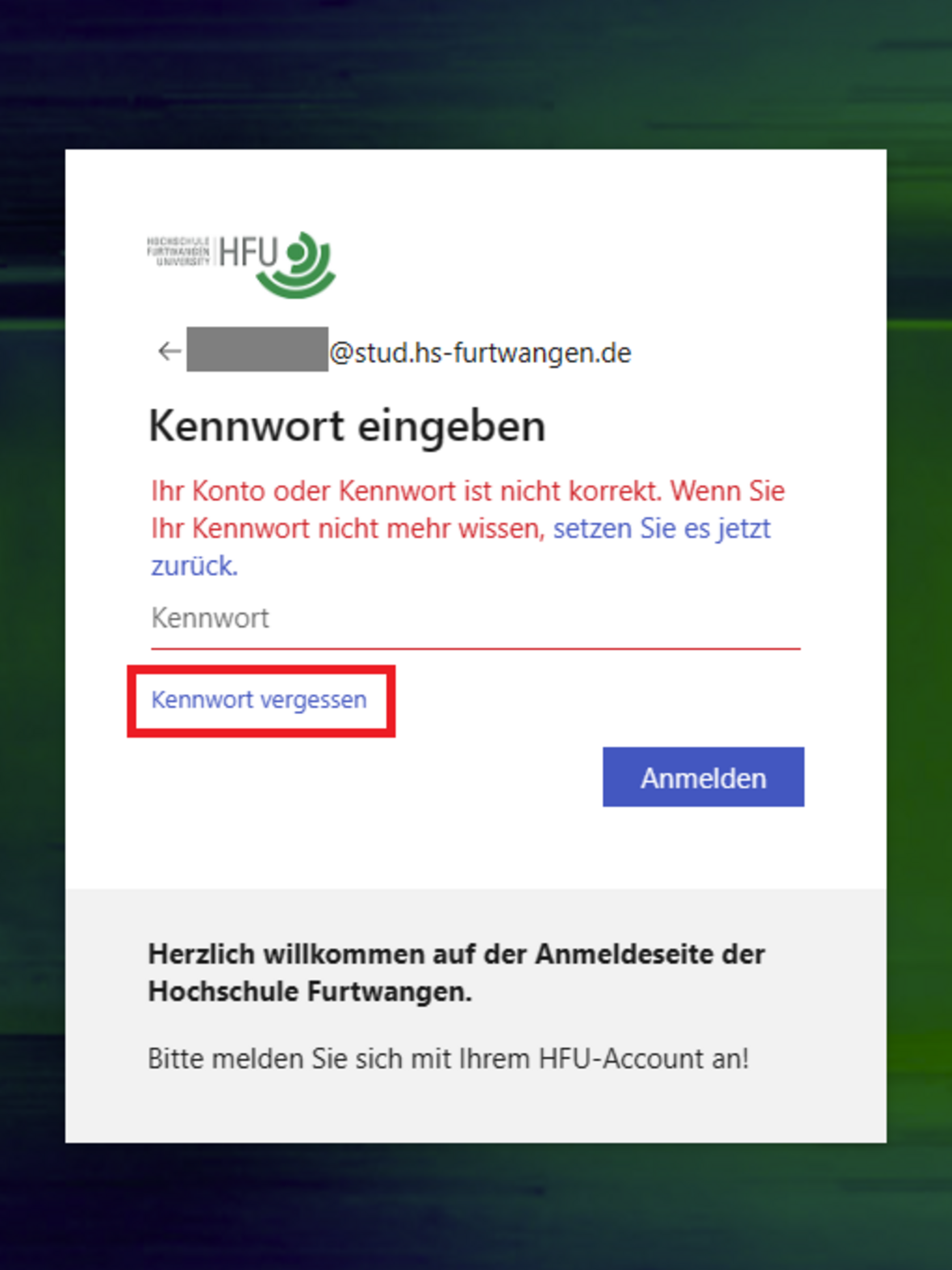
 Click on Forgot password
Forgot password
- 1.2
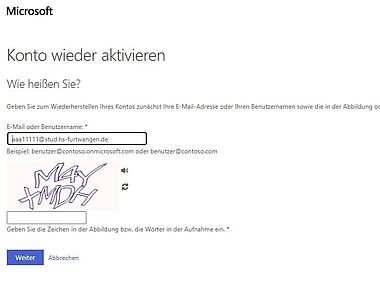 Reactivate account
Enter the characters in the illustration
You will now receive a code in your two-factor authentication method (e.g. in the Authenticator app). Now enter this code in the line provided (see Figure 2.1).
- 2.1
 Enter the code you received
Enter verification code
Now enter a new password in the lines “Enter new password” and “Confirm new password”.
- 3.1
 Enter new password
and confirm the password
You will now receive confirmation that your password has been reset (see Figure 4.1).
- 3.1
 The message appears
The password has been successfully reset