Logging into your HFU Account
What you need to know
The HFU account is required to log in to all digital services.
Please follow the instructions below to complete the login process.
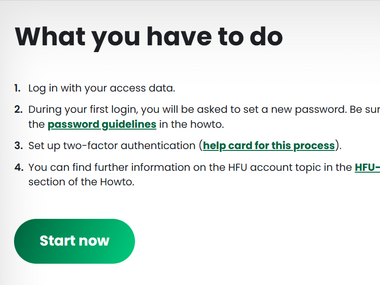
What you have to do
Open your preferred web browser and go to the website External link opens in a new window:start.hs-furtwangen.de.
- 1.1
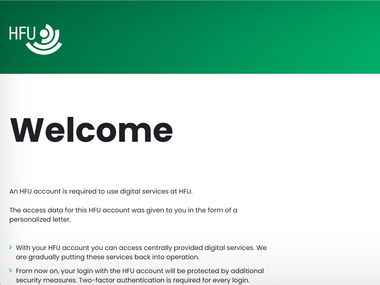
Read the introduction, then click the “Start now” button below the text.
- 2.1
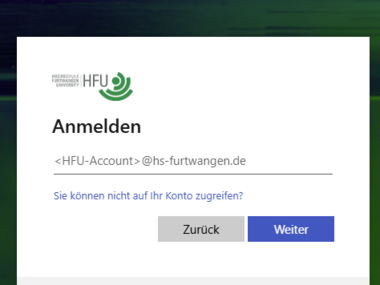
Enter your HFU account credentials in the login form and click “Next” (see Figure 3.1).
- 3.1
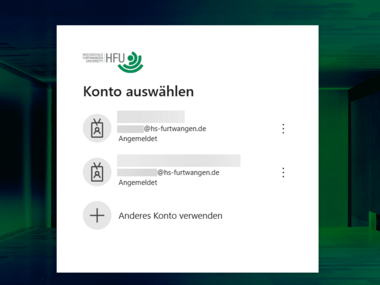
- 3.2
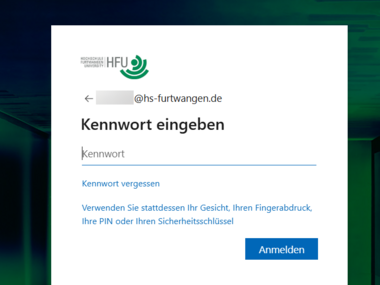
Enter your HFU account password.
- 4.1
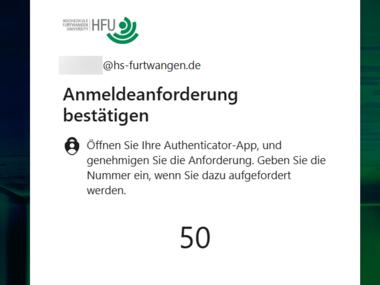
Pick up the mobile device on which you have installed the Authenticator app.
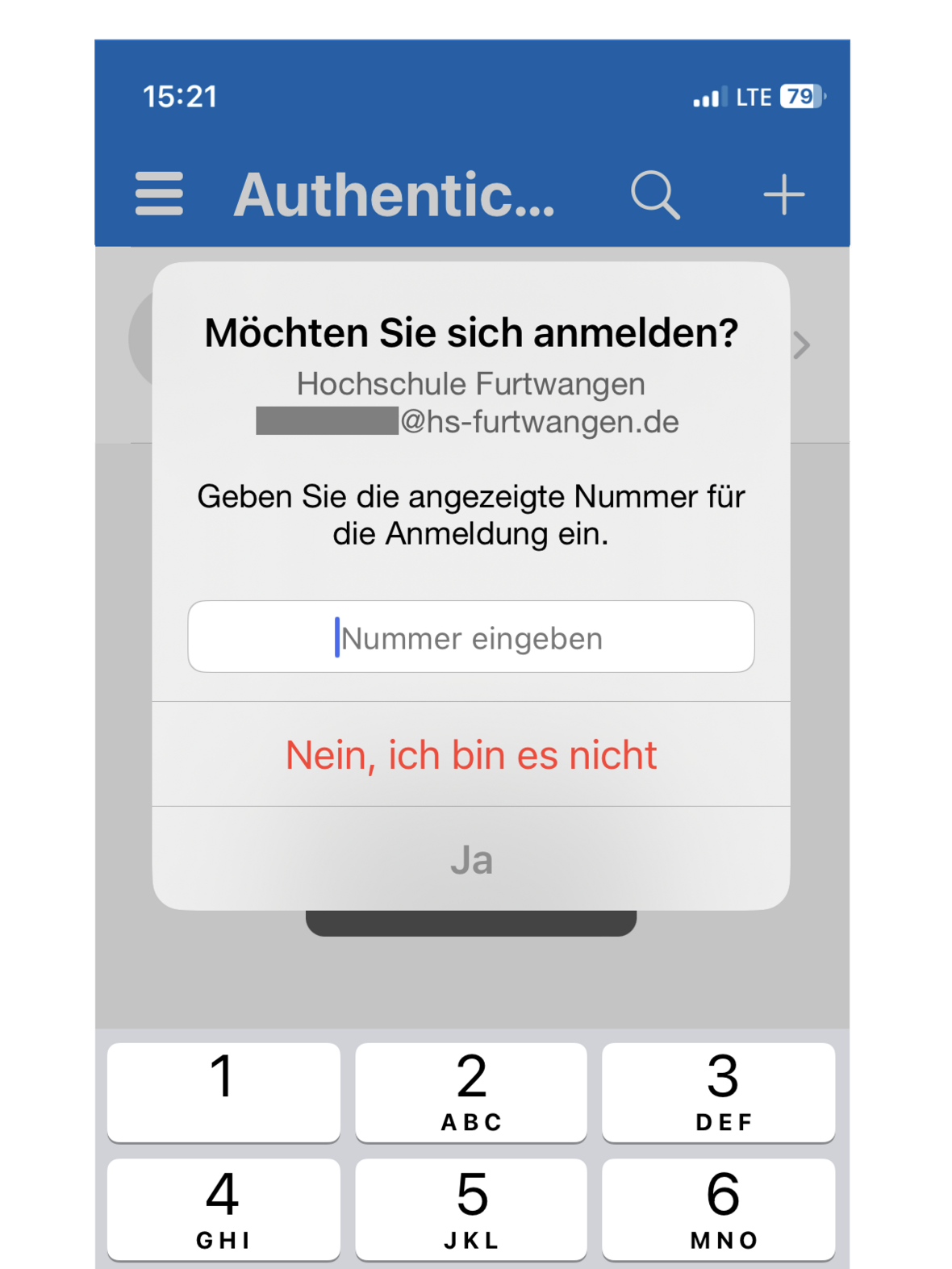
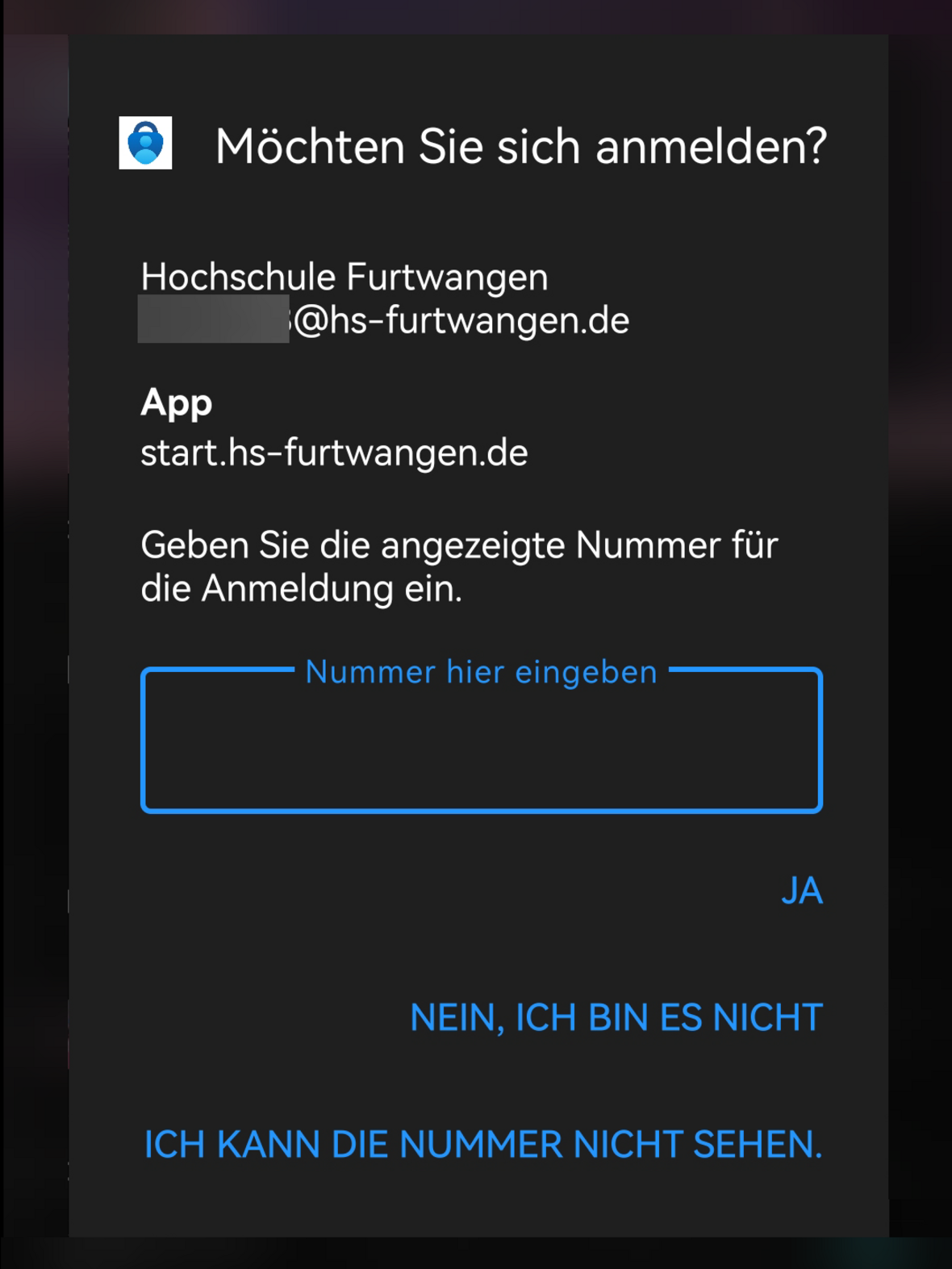
Then enter the two-digit number displayed in the prompt (push notification) and tap “YES” (see Figure 5.2 or Figure 5.4).
- 5.1
- 5.2
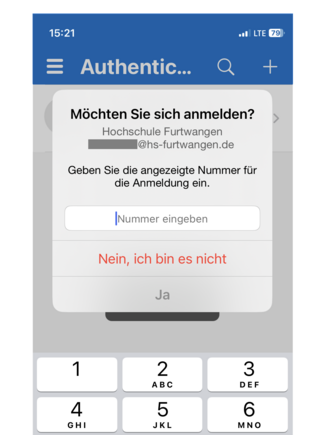 Push notification
(View: iPhone) Enter the two-digit number into the Authenticator app's prompt.
- 5.3
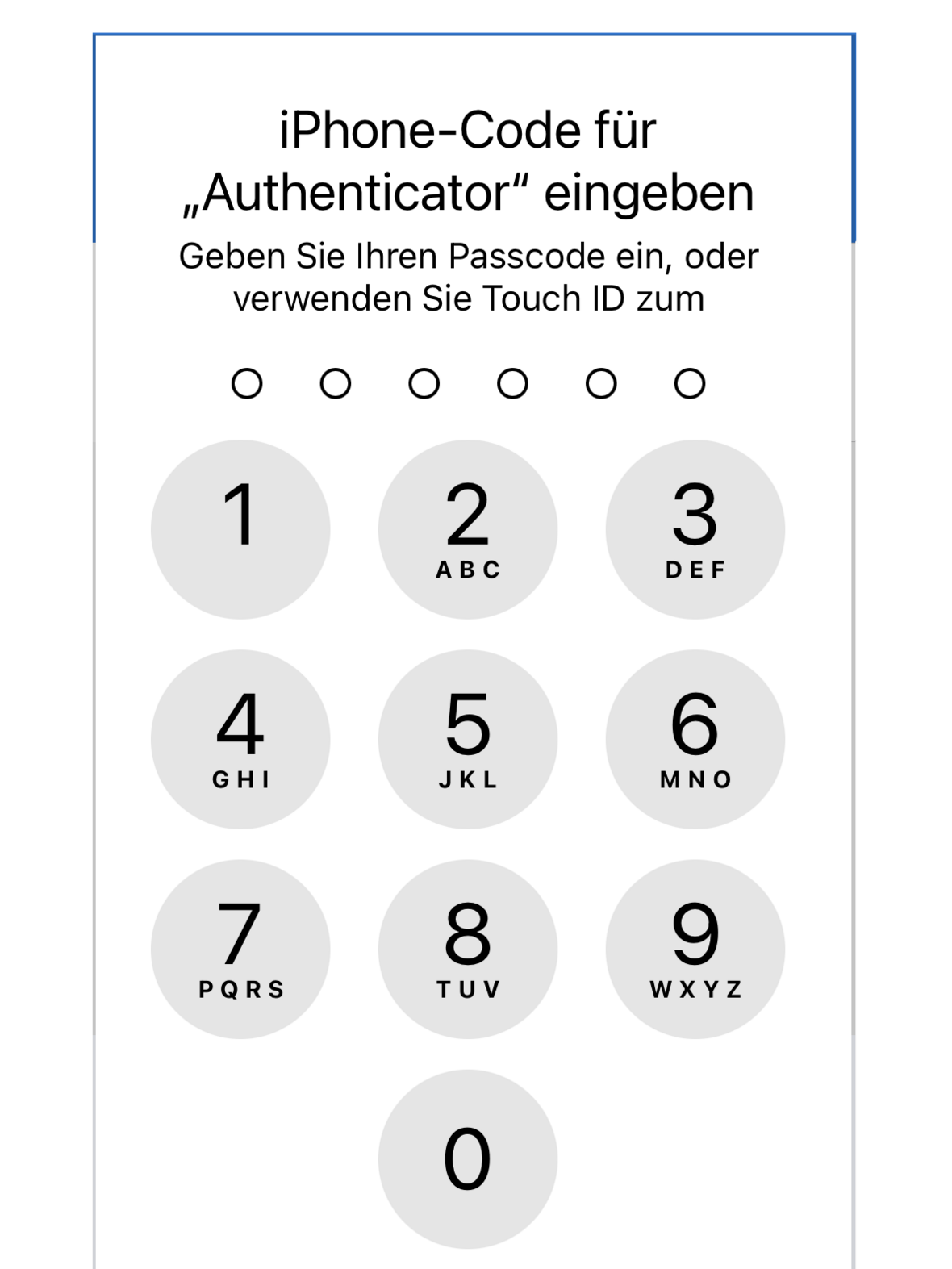
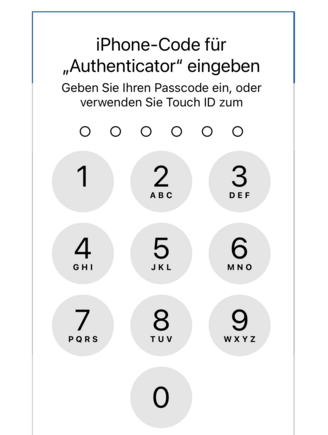 Additional confirmation prompt
(View: iPhone) Enter your PIN to confirm.
- 5.4
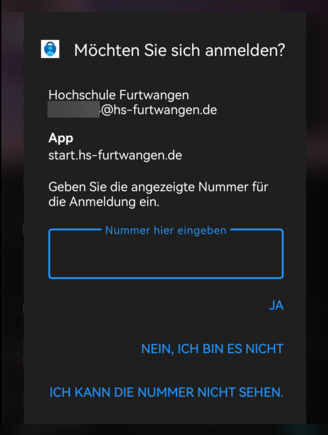 Push notification
(View: Android Dark Mode) Enter the two-digit number into the Authenticator app's prompt.
- 5.5
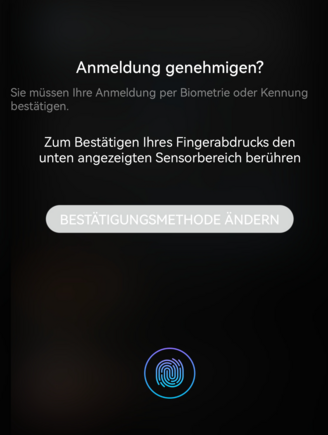 Additional confirmation prompt
(View: Android Dark Mode) Confirm the authentication prompt (in this case, fingerprint).
You can now use the service overview to access the HFU digital services.
- 5.1